
The mechanical keyboard world has settled on a “goldilocks” size: the 75 keyboard. It offers the functionality of a full-size board without sacrificing precious desk space. But with popularity comes questions.
If you have just purchased a new 75 percent keyboard, you might be asking two critical questions: “How to change LED colors on a 75 percent keyboard?” and “What is the difference between ANSI and ISO?”
Whether you are looking for the best 75 keyboard for gaming or the best 75 keyboard for typing, this guide covers everything from 75 keyboard layout specifics to hardware recommendations.
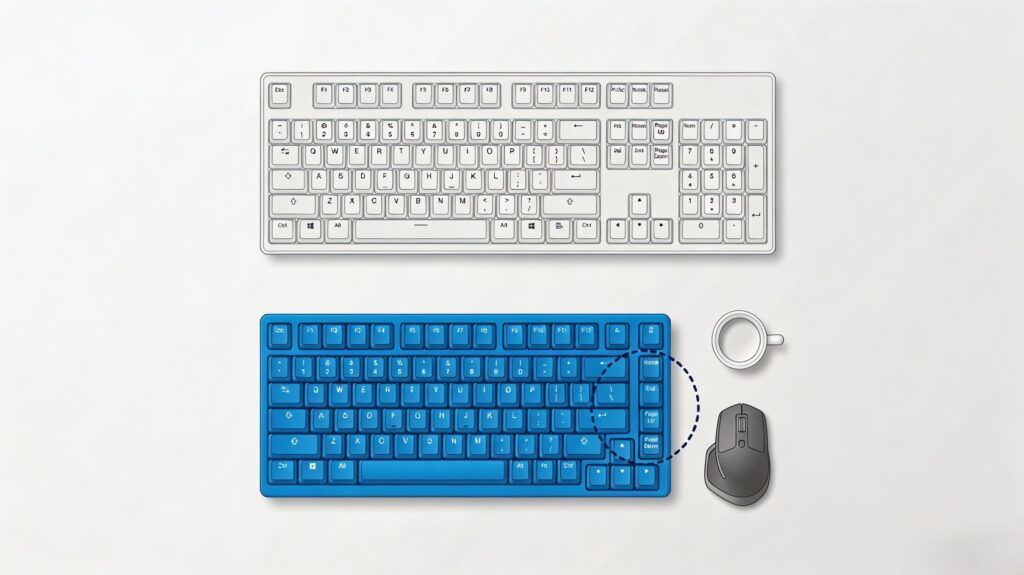
Part 1: Understanding the 75 Keyboard Layout (ANSI vs. ISO)
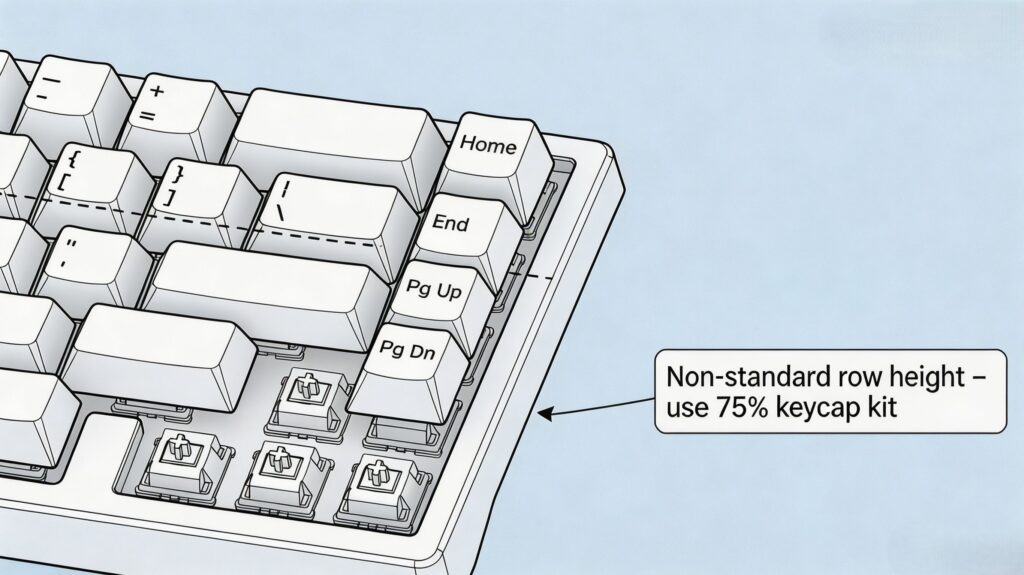
Before diving into RGB settings, you must understand your 75 keyboard layout. Unlike full-sized keyboards, the 75% form factor compresses the navigation cluster (Home, End, PgUp, PgDn) into a single vertical stack next to the Enter key.
However, the most significant visual difference in modern 75 mechanical keyboards comes from the region-specific standards: ANSI and ISO.
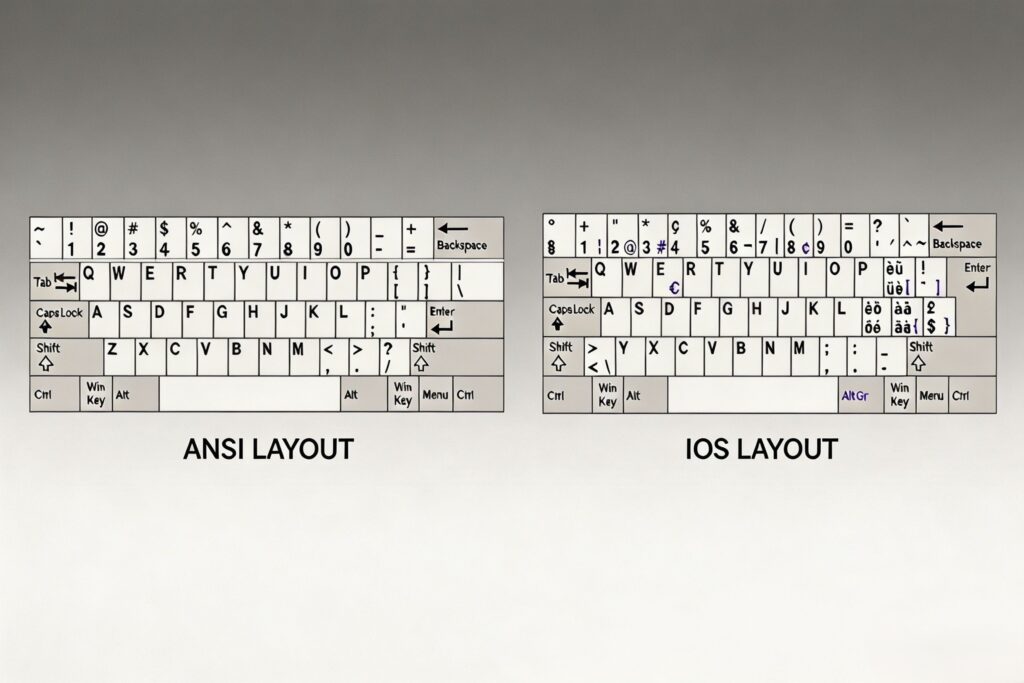
The ANSI Layout (Standard in the US)
- Left Shift: Long and wide.
- Enter Key: Wide, horizontal bar (shaped like a rectangle).
- Backspace: Usually a single wide button.
- Key Count: Typically 87 keys for TKL, fewer for 75%.
The ISO Layout (Standard in Europe)
- Left Shift: Split into two parts (Shift +
\key). - Enter Key: Tall, inverted “L” shape (stepped).
- Key Count: Usually one key more than ANSI due to an extra key next to Left Shift.
How the Image Relates to Your Keyboard
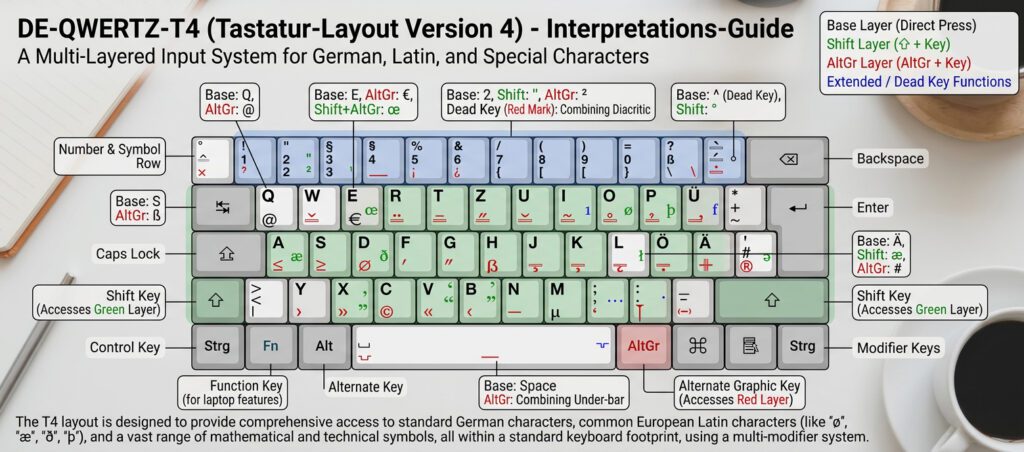
In the image provided, you see a list of language mappings (QWERTY, AZERTY, QWERTZ, etc.). If you see “Other (Insert your layout)” , you are likely looking at software settings (like VIA or QMK) or a driver menu. This menu allows you to assign physical keys to match these regional standards. For example:
- AZERTY is the French variant of ISO.
- QWERTZ is the Central European variant of ISO.
- DVORAK/COLEMAK are alternative alphabetical layouts that work on both ANSI and ISO hardware.
Part 2: How to Change LED Colors on a 75 Percent Keyboard
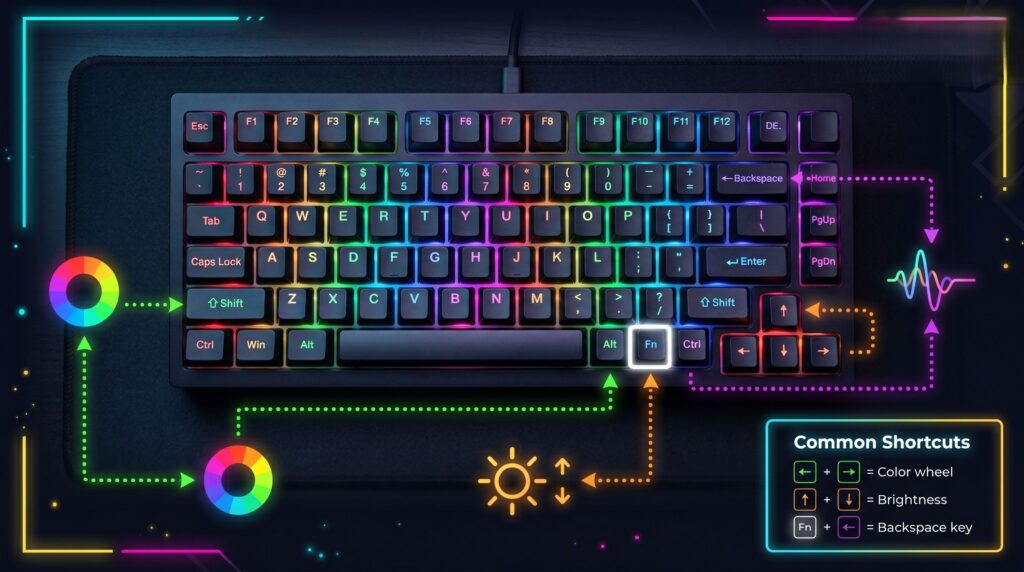
One of the most common queries is how to change led colors on a 75 percent keyboard. Because 75% boards often lack dedicated media keys, RGB control is usually handled via Function (Fn) layer shortcuts.
Here are the universal standard shortcuts (though they vary by brand):
- Cycle Modes: Usually
Fn + BackspaceorFn + Enter(changes from Wave, to Breath, to Static). - Change Color (Hue): Usually
Fn + Left/Right ArroworFn + Q/E. - Brightness: Usually
Fn + Up/Down Arrow. - Speed: Usually
Fn + [ ](bracket keys).
Specific Hardware Examples
Let us look at two specific product examples from our list to see how this works in practice.
Example A: AULA F75
If you own the aula 75 keyboard (F75 model), changing colors is intuitive.
- Function Key: Locate the
Fnkey on the bottom row. - Change Color: Press
Fn + F9to cycle through built-in RGB lighting modes. - Change Hue: Press
Fn + F10to rotate the color palette. - The Knob: Unlike smaller boards, the F75 features a multimedia knob. You can often press the knob in (or toggle the Fn layer) to mute or adjust volume, though RGB is primarily controlled via the F-row.
Product Insight: The AULA F75 75 Mechanical Keyboard is a prime example of a tri-mode wireless board. It supports 2.4G, Bluetooth, and Wired connections while retaining full RGB customization.
Example B: Hall Effect Boards (AULA AG75 / Wobkey Rainy75)
For advanced users wondering how to change led colors on a 75 percent keyboard with Hall Effect switches (Magnetic), you usually need software.
- Hardware Shortcuts: Most support
Fn + Backspacefor mode switching. - Software Control: For boards like the AULA AG75 or the Wobkey Rainy75RT, you download the proprietary driver. Here you can set per-key colors, reactive typing effects, and specific colors for different profiles.
Pro Tip: The Wobkey Rainy75RT Hall Effect Keyboard uses magnetic switches. Because these switches have different internal mechanisms, their RGB lighting is often much brighter and smoother than standard mechanical switches due to the clear internal housing.
Part 3: Practical Utility: Taking Screenshots
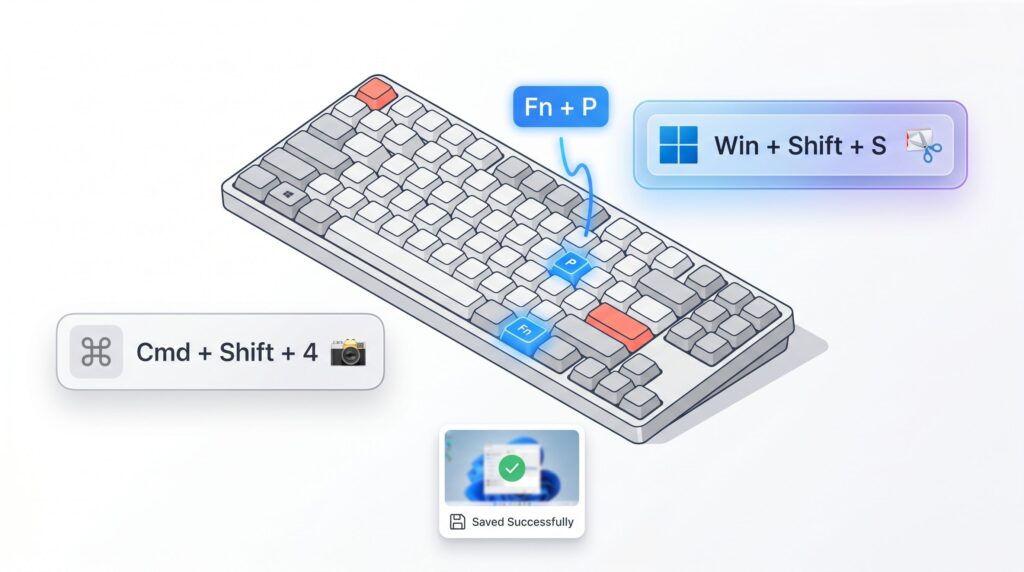
A unique question users have is how to take screenshots on a 75 keyboard. On a full-size keyboard, there is a dedicated PrtSc (Print Screen) key. On a 75%, that key is usually removed or layered.
The Solution:
- Windows:
Fn + P(common on many 75 boards) orWin + Shift + S(Windows Snipping Tool – always works). - Mac:
Cmd + Shift + 4orCmd + Shift + 3. - Hardware Specific: Look at your keyboard keycaps 75. If the keycap has “PrtSc” printed on the front (side) of the key, you hold
Fnto use it.
Part 4: The Best 75 Keyboard Models in 2026
Based on the product links provided, here is a breakdown of the top contenders for the best 75 keyboard title, focusing on 75 keyboards that dominate the market right now.
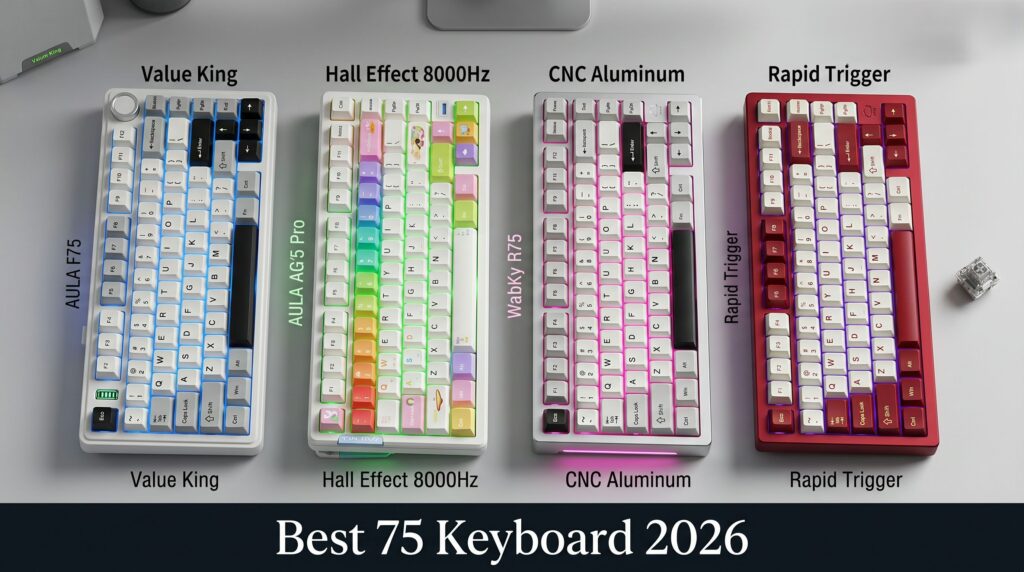
1. AULA F75 (The Value King)
If you want a 75 wireless mechanical keyboard that is quiet and thocky, this is it.
- Why buy it: Pre-lubed switches, 5-layer sound dampening, and a massive 4000mAh battery.
- Layout: Available in both ANSI and ISO layouts (DE, ES).
- Best for: Office workers and gamers who want a 75 mechanical keyboard that sounds expensive but isn’t.
- Key Feature: The side-printed PBT keycaps prevent fading.
2. AULA AG75 (The Speed Demon)
This is a Hall Effect keyboard designed for competitive gaming.
- Why buy it: 8000Hz polling rate and 0.001mm actuation precision (Rapid Trigger).
- Build: Full-aluminum CNC shell. A true 75 keyboard mechanical upgrade.
- Best for: Esports (Valorant, OSU, Apex).
- Key Feature: Magnetic switches with “Dual Soul” mode (instant switch between work and gaming).
3. Wobkey Rainy75 (The Custom Enthusiast)
This board is often cited as the best 75 keyboard for pure acoustics.
- Why buy it: Electroporated CNC aluminum case and a very stiff, solid typing feel.
- Variants: The standard Rainy75 is a 75 mechanical keyboard with traditional switches, while the Rainy75RT is the Hall Effect version.
- Best for: Users who want a heavy, premium desk piece.
- Key Feature: Considered one of the best-sounding 75 percent keyboard designs straight out of the box.
4. Wobkey Rainy75RT (Magnetic Marvel)
Specifically for those asking about how to change led colors on a 75 percent keyboard with extreme precision.
- Why buy it: Rapid Trigger with adjustable actuation.
- Compatibility: Works with most keyboard keycaps 75 due to standard stems.
- Best for: Gamers who want the “Rainy” look but need the speed of magnetic switches.
Part 5: Customization & Keycaps
Once you have your 75 layout keyboard, you will likely want to swap the keyboard keycaps 75. Because 75% layouts have a unique row height for the right-side column (Home, End, PgUp, PgDn), always ensure your keycap set includes a “75% kit” or “non-standard bottom row.”
Tip for the boards listed:
- The AULA F75 uses a standard layout, making it easy to find keyboard keycaps 75.
- The AULA AG75 and Rainy75 use a “Exploded” 75 layout (gaps between the arrow keys), which looks great with Cherry or OEM profile keycaps.
Conclusion
Whether you are trying to master how to change led colors on a 75 percent keyboard, searching for the best 75 keyboard for your setup, or debating between an ANSI vs ISO layout, the 75 keyboard form factor is the ultimate choice for modern computing.
For a budget-friendly, feature-packed wireless experience, look at the AULA F75 . For bleeding-edge gaming performance with magnetic switches, the AULA AG75 or Wobkey Rainy75RT will serve you best.
Remember to check your keyboard’s manual for the specific Fn layer, but generally, Fn + Backspace and Fn + Q/E is the universal solution for how to change led colors on a 75 percent keyboard.
 English
  German
  Portuguese
  Spanish
  Italian
  Finnish
  French
  Japanese
  Korean
  Swedish