
The non-physical contact design of Hall Effect keyboards makes them inherently more durable than traditional mechanical keyboards, boasting a theoretical lifespan of over 100 million keystrokes. However, this doesn’t mean they are entirely maintenance-free. Incorrect maintenance or neglect can still cause a premium keyboard to fail prematurely.
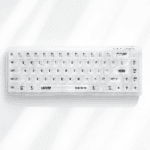
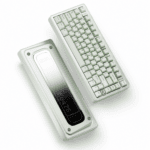
In this comprehensive guide, we will use the hardware features of the AULA AG60 as an example to teach you step-by-step how to properly maintain and care for your magnetic switch keyboard.
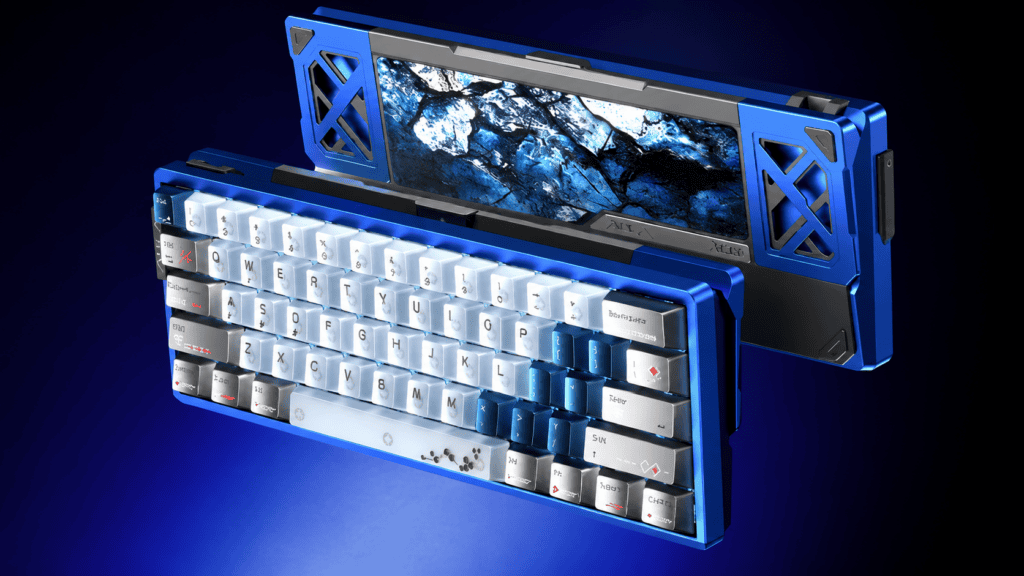
Part 1: Why Don’t Magnetic Switches Feel “Mushy” Over Time?
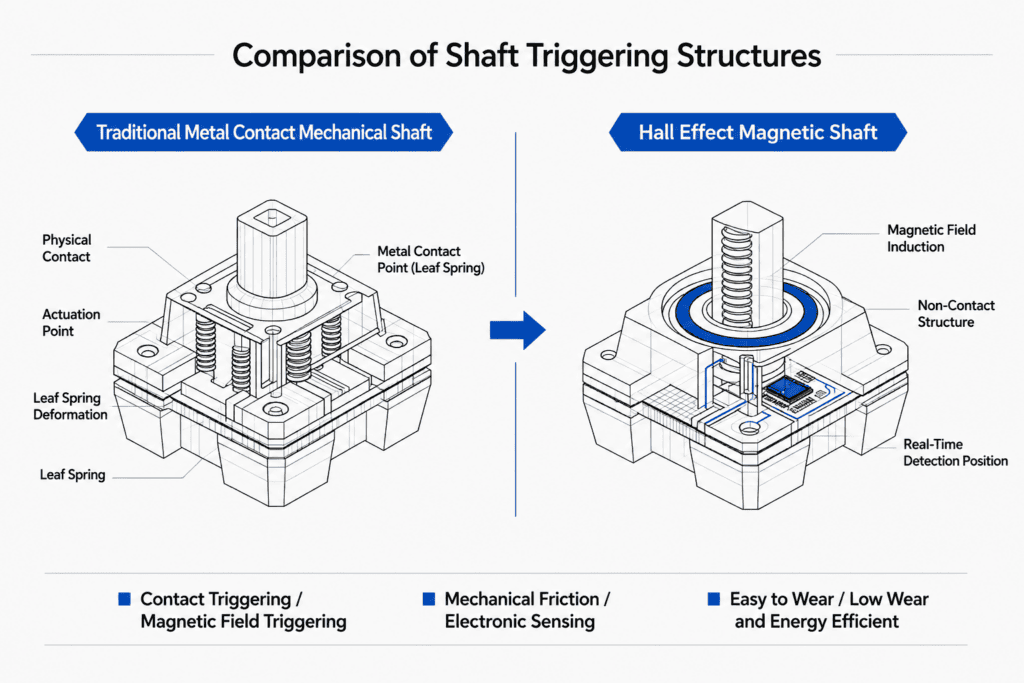
First, let’s dispel a common misconception. Traditional mechanical keyboards start to feel “mushy” after prolonged use due to the oxidation of metal contacts, spring aging, and the drying out of factory lube.
Magnetic switches, on the other hand, rely on magnetic induction to trigger keystrokes. There is no physical contact, no friction, and no oxidation. Taking the Hall Effect magnetic switches equipped in the AULA AG60 Hall Effect Keyboard as an example, their design lifespan reaches an incredible 100 million keystrokes. Under normal use, you simply won’t experience the tactile degradation common in traditional keyboards.
But this doesn’t mean magnetic switches are immune to issues. The focus of maintenance shifts from “repairing wear and tear” to “preventing contamination.” Hall sensors are extremely sensitive to changes in magnetic fields, meaning any factor that affects magnetic stability needs your attention.
Part 2: Daily Cleaning – The Simplest Yet Most Crucial Step
Surface Cleaning (Weekly)
- Wipe with a soft, dry cloth: The PBT side-engraved keycaps on the AULA AG60 are naturally wear-resistant and oil-proof, but they still need regular wiping to remove fingerprints and surface dust.
- Avoid wet cloths or liquid cleaners: Liquid seeping into the PCB can cause a fatal short circuit. Although the AULA AG60 features double-layer sound-dampening foam, it is not rated as waterproof. Liquid damage is often irreversible.
Deep Cleaning (Every 6 Months)
- Remove keycaps: Use a keycap puller to remove all keycaps (the AULA AG60 comes with a handy 2-in-1 keycap and switch puller).
- Brush away debris: Use a soft-bristled brush to clean the dust and crumbs trapped between the switch housings.
- Use compressed air: Blow away stubborn dust hidden deep between the switches.
- Crucial Warning: While the AULA AG60 supports full-key hot-swapping, we recommend not pulling out the magnetic switches casually during routine cleaning. Frequent plugging and unplugging can loosen the hot-swap sockets and affect trigger stability. If you must remove a switch, always power off and disconnect the keyboard first.
Part 3: Software Maintenance – The Step 99% of Users Ignore
Regular Calibration (At least once a year)
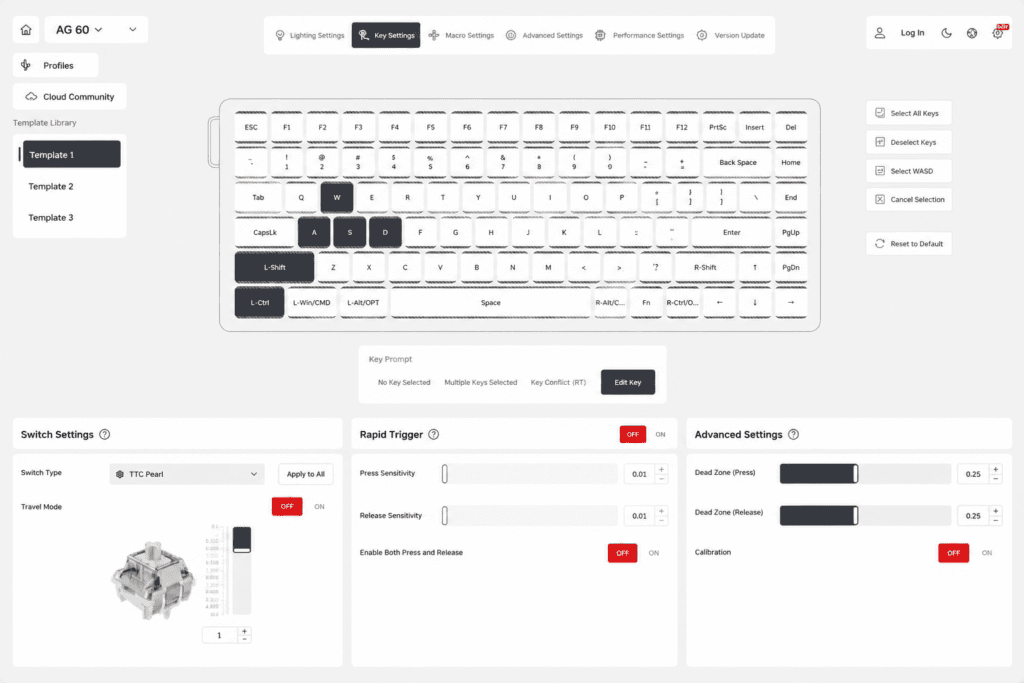
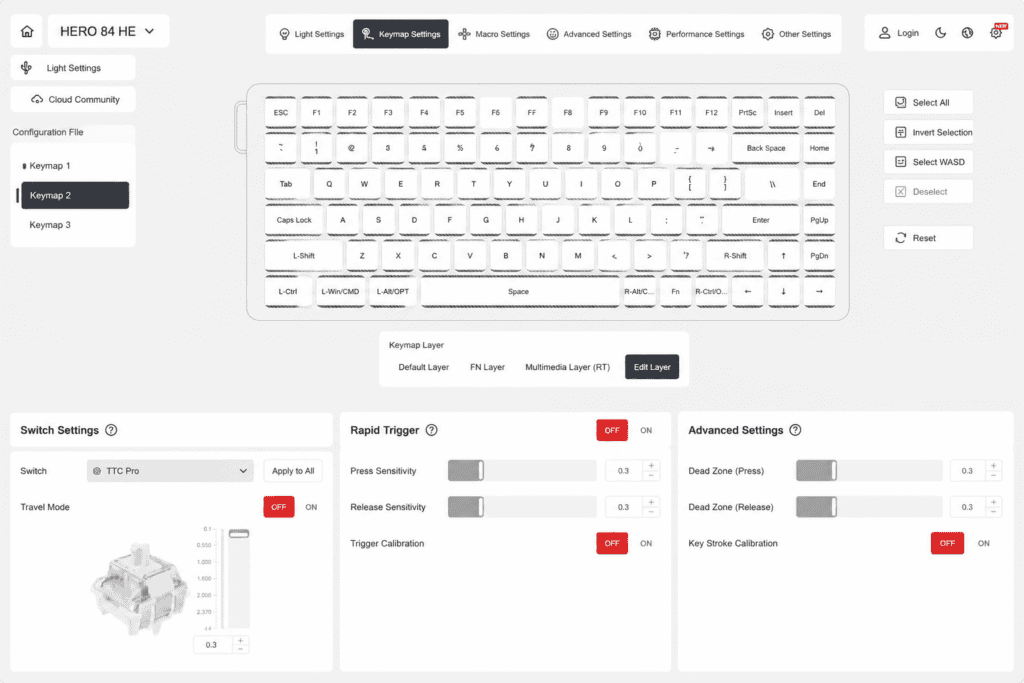
- Run the Hall sensor calibration tool in your keyboard’s software.
- Calibration refreshes the sensor mapping, effectively resolving issues like actuation point drift and unstable keystrokes.
Firmware Updates
- Regularly check the brand’s official website to update your keyboard’s firmware.
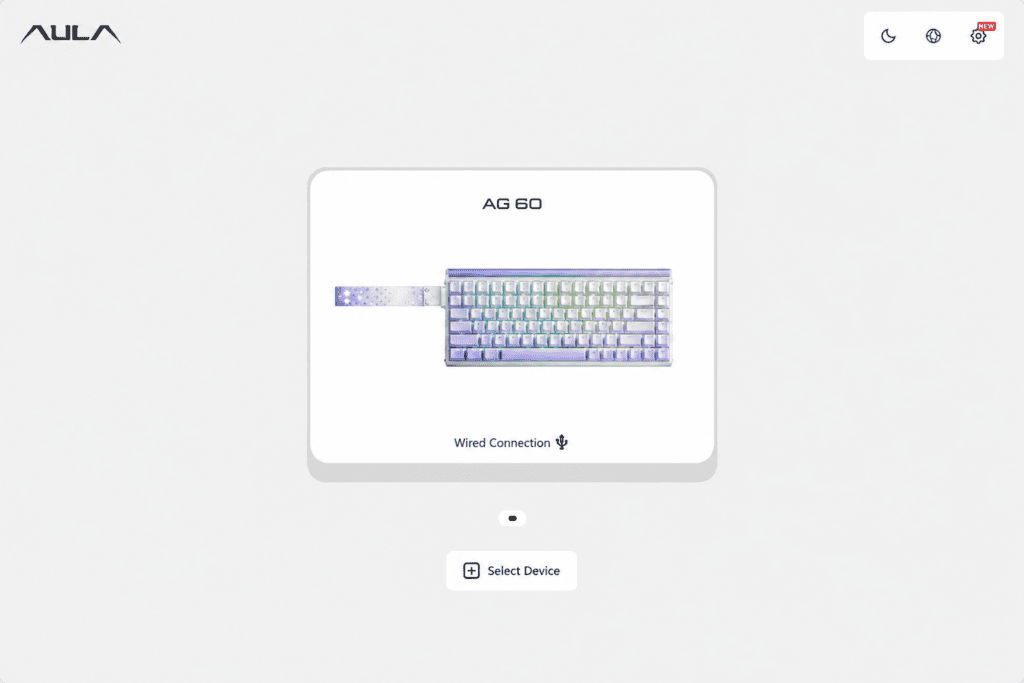
- New firmware often optimizes algorithms, fixes bugs, and enhances overall stability. The AULA AG60 supports a highly convenient web-based driver, meaning you can update firmware and tweak parameters directly from your browser without downloading any bloated software.
Part 4: Power & Connection – Details Determine Stability
Choosing the Right Port
Magnetic keyboards—especially models supporting an 8000Hz polling rate—have strict power requirements. The AULA AG60 supports an 8KHz polling rate to achieve an ultra-low 0.1ms latency.
- Recommendation: Use the original Type-C cable and plug it directly into a USB 3.0 port on your motherboard.
- Avoid: USB Hubs or front-panel case ports. Insufficient power delivery can cause the keyboard to disconnect frequently.
- Custom Cables: Try to avoid third-party custom aviator cables unless they are high quality, as non-standard wiring can compromise power stability.
Wireless Usage Tips
The AULA AG60 supports tri-mode connectivity (Wired / 2.4G Wireless / Bluetooth) and offers around 50 hours of battery life in wireless mode.
- Enable the auto-sleep function to significantly extend battery life.
- Charge the keyboard promptly when the battery drops below 20% to prevent deep discharge damage to the lithium battery.
Part 5: Usage Habits – Avoid These “Invisible Killers”
Environmental Factors
- Magnetic Interference: Keep your magnetic keyboard away from strong magnetic fields (e.g., large speakers, transformers, wireless charging pads). Strong external magnets can interfere with the precision of the Hall sensors.
- Temperature & Humidity: Avoid using the keyboard in overly humid or dusty environments. Do not leave it in direct sunlight, as high temperatures can degrade the switch lubrication.
Parameter Settings
- If you set an extremely short actuation distance (e.g., 0.1mm), even the slightest tremor in your fingers might cause accidental triggers or key releases.
- Recommendation: Set parameters based on your hand stability. Don’t blindly chase the “extreme limits.” The AULA AG60 offers an adjustable actuation range of 0.1mm to 4.0mm. For typing and office work, a setting of 1.5mm – 2.0mm is highly recommended. For competitive gaming, you can gradually shorten the distance to find your sweet spot.
Part 6: Troubleshooting Common Issues
| Issue | Potential Cause | Solution |
|---|---|---|
| Occasional unresponsive keys | Uncalibrated / Outdated firmware | Run sensor calibration and update firmware via web driver. |
| Double-clicking / Disconnecting keys | Actuation point set too extreme (e.g., 0.1mm) | Slightly increase the actuation distance. |
| Frequent keyboard disconnections | Insufficient power supply | Plug directly into a motherboard USB 3.0 port using the original cable. |
| Scratchy feeling when pressing switches | Dust/debris inside the switch rails | Perform a deep clean using a brush and compressed air. |
| Actuation point drift | Hall sensor drift over time | Run the driver calibration tool. |
| High latency in wireless mode | Bluetooth interference | Switch to the 2.4G dongle mode or wired connection for gaming. |
Part 7: The AULA AG60 – What Does an “Easy-to-Maintain” Magnetic Keyboard Look Like?
If you are shopping for your first magnetic keyboard or looking to upgrade to a more hassle-free model, the design choices of the AULA AG60 Hall Effect Keyboard serve as a perfect benchmark for easy maintenance:
- Full-Key Hot-Swappable: Replacing a faulty switch requires zero soldering, making long-term maintenance incredibly easy.
- PBT Side-Engraved Keycaps: Highly resistant to wear and finger oils, ensuring the keyboard looks pristine for longer and is easier to wipe down.
- Web-Based Driver Support: No need to install heavy software. Simply open your browser to calibrate sensors, adjust actuation points, and update firmware.
- Tri-Mode Connectivity: Features smart auto-sleep in wireless scenarios to protect and prolong battery health.
By following these simple maintenance steps and understanding how your Hall Effect sensors work, you can ensure your magnetic keyboard delivers peak gaming performance and a flawless typing experience for years to come.
 English
  German
  Portuguese
  Spanish
  Italian
  Finnish
  French
  Japanese
  Korean
  Swedish