
Core Argument: The true value of a Hall Effect keyboard lies not just in its hardware, but in the “programmability” unlocked by its software. Buying a magnetic switch keyboard and only using the default settings is like buying a sports car and never driving it over 40 mph.
This comprehensive guide will walk you through how to use driver software to tune your keyboard to perfectly match your playstyle. We will use the AULA AG60 as our primary example—a highly cost-effective 60% magnetic switch keyboard that supports full software customization to help you squeeze every millisecond of performance out of your magnetic switches.
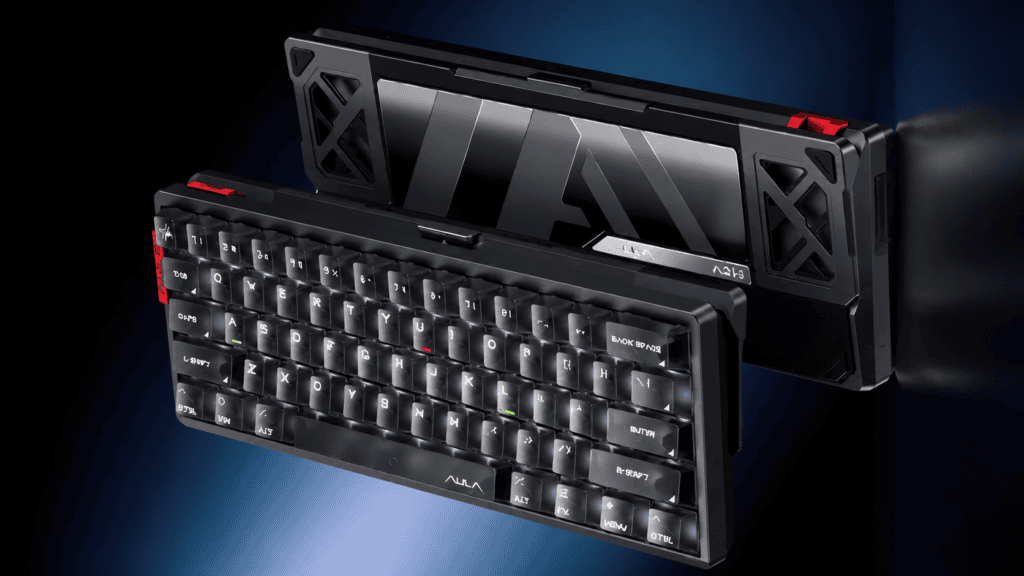
Part 1: Preparation — Downloading Drivers and Updating Firmware
This is the first and most easily overlooked step in tuning your keyboard.
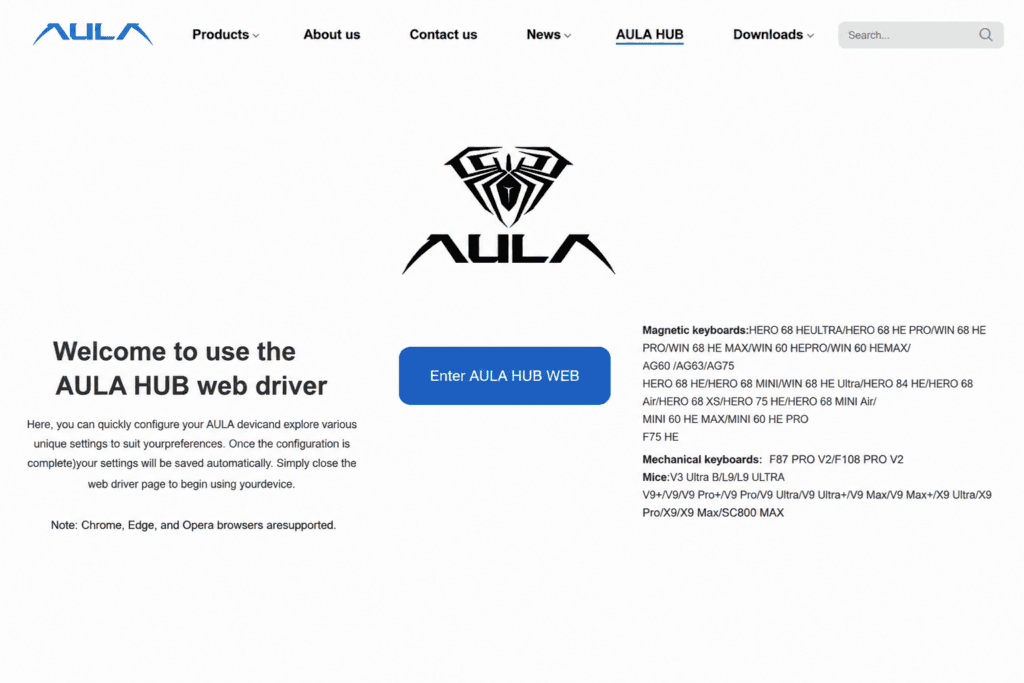
- Download the Driver: Visit the brand’s official website to download the latest driver software. (For example, the AULA AG60 driver supports complete key customization and parameter tuning).
- Update the Firmware: After connecting your keyboard, always check for and install firmware updates first. Outdated firmware is a common cause of Rapid Trigger malfunctions.
- Web Drivers: Note that some brands now support web-based drivers, allowing you to configure your settings directly in your browser without downloading any software.
Part 2: Core Parameter 1 — Actuation Point
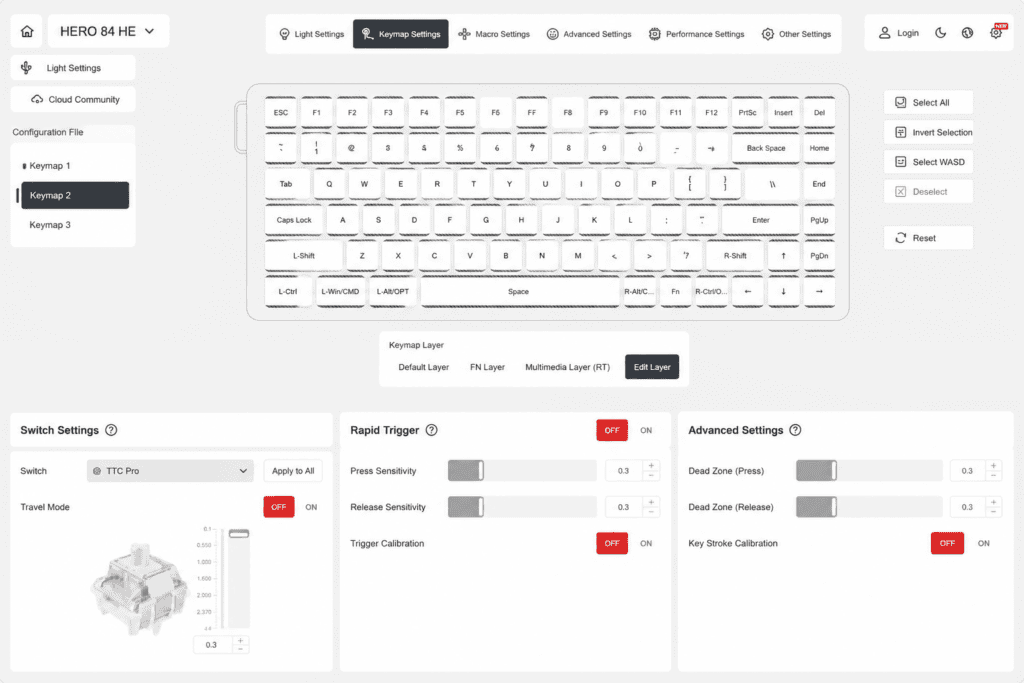
What is the Actuation Point? It is the distance a key needs to be pressed before the computer registers the input. A smaller number means higher sensitivity, while a larger number prevents accidental presses.
How to Set It Up:
- Locate the “Actuation Point” slider in your driver software.
- Drag the slider to adjust the value (typically ranging from 0.1mm to 4.0mm). The AULA AG60, for instance, offers a fully adjustable range from 0.1mm to 4.0mm, covering everything from ultra-fast competitive gaming to comfortable daily typing.
- You can apply this globally (all keys) or per-key (different actuation points for specific keys).
Recommended Actuation Point Settings:
| Scenario | Recommended Actuation | Explanation |
|---|---|---|
| FPS Games (WASD) | 0.1–0.3mm | Ultra-short travel for instant movement. |
| FPS Games (Other Keys) | 1.0mm | Fast response while minimizing accidental presses. |
| MOBA Games | 1.0mm | Faster skill casting and ability execution. |
| RPG / MMORPG | 1.5mm | A perfect balance between speed and accuracy. |
| Daily Typing / Office | 2.0mm | Prevents typos and mimics the feel of traditional mechanical switches. |
Pro Tip: Some drivers feature real-time visual feedback for keypress depth (often indicated by an “eye” icon). You can press the key while adjusting the slider to find your most comfortable actuation point.
Part 3: Core Parameter 2 — Rapid Trigger (RT)
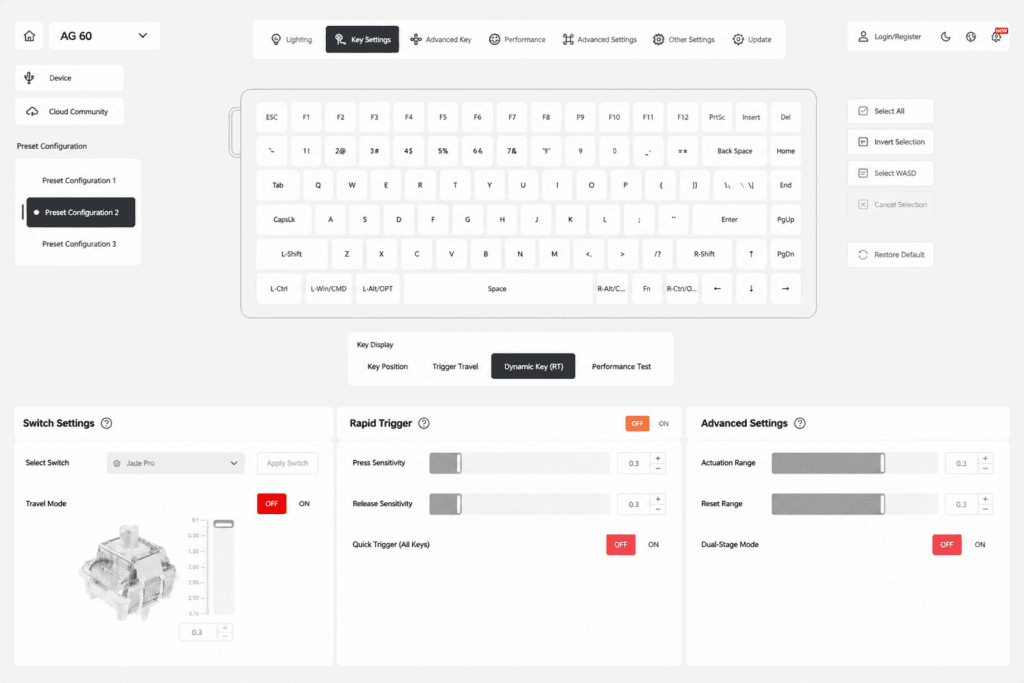
What is Rapid Trigger? Traditional mechanical keyboards require the key to fully return to a fixed reset point before it can be pressed again. Rapid Trigger allows the key to reset the moment you lift your finger even slightly, enabling ultra-fast repeated keystrokes.
The AULA AG60 supports an incredible 0.001mm RT precision. This means every microscopic lift of your finger is accurately captured, allowing for textbook-perfect counter-strafing in games like Valorant and CS2.
How to Enable It:
- Find the “Rapid Trigger” toggle in your driver.
- Turn it on. You can usually choose to enable it globally or only for specific keys.
Advanced Settings — Separating Downstroke and Upstroke: Premium drivers allow you to set different sensitivities for pressing and lifting:
- Downstroke Sensitivity: How far the key needs to travel down to trigger (default is often around 0.4mm).
- Upstroke Sensitivity: How far the key needs to be lifted to reset (smaller values mean faster resets).
Combat Tip: In tactical shooters like Valorant, set your Crouch key (Ctrl) to Rapid Trigger mode. This allows for lightning-fast crouch-spamming, making you a much harder target to hit. Powered by its 8000Hz polling rate and 0.1ms latency, the AULA AG60 is purpose-built for these intense competitive scenarios.
Part 4: Core Parameter 3 — Dead Zone & Calibration
What is a Dead Zone? A dead zone is an intentionally “inactive” area set at the very top and bottom of the keystroke. This prevents the keyboard from registering an input if you are simply resting your fingers heavily on the keycaps.
When Do You Need Calibration? If your keyboard starts experiencing double-typing (chattering), unresponsiveness, or unstable inputs, calibration should be your first troubleshooting step.
How to Calibrate:
- Find the “Calibration” option in your driver.
- Click “Start Calibration” and press every single key on the keyboard sequentially.
- Once finished, the Hall Effect sensors will remap themselves, restoring stable and accurate inputs.
Maintenance Tip: It is highly recommended to run a sensor calibration through your driver every 6 months. This is the easiest and most effective way to maintain long-term accuracy.
Part 5: Advanced Play — Profiles and Macros
- Multi-Scenario Profiles: Most drivers allow you to save multiple configuration profiles. You can set up one profile for Gaming (short actuation + RT enabled) and another for Office work (long actuation + RT disabled). You can easily swap between them using shortcuts (e.g., FN + Z/X/C).
- Key Remapping: Change unused keys to more useful functions (e.g., mapping the ‘Q’ key to a mouse forward button).
- Macros: Record complex sequences of actions and execute them with a single keystroke.
Part 6: Troubleshooting Common Issues
| Problem | Potential Cause | Solution |
|---|---|---|
| Key not responding | Uncalibrated sensor | Run the calibration tool in the driver software. |
| Double-typing / Stuttering | Actuation set too extreme | Slightly increase the actuation point distance. |
| Rapid Trigger not working | Outdated firmware | Update to the latest keyboard firmware. |
| Driver cannot detect keyboard | USB port issue | Connect directly to a USB 3.0 port on the motherboard. |
Part 7: The Ultimate Budget-Friendly Choice — AULA AG60
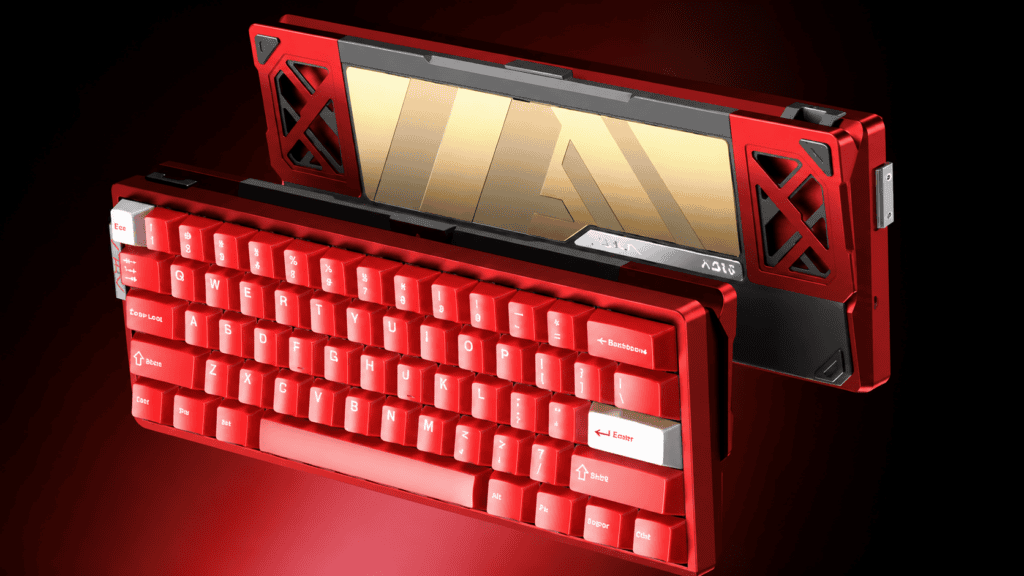
If you are looking for an entry-level magnetic switch keyboard that doesn’t compromise on tuning capabilities, the AULA AG60 Hall Effect Keyboard is a highly recommended choice. It packs premium features into an affordable package:
- 60% Compact Layout: Frees up massive amounts of desk space for sweeping mouse movements, perfect for FPS gamers.
- Full-Key Hot-Swappable: Easily swap out switches without any soldering required.
- PBT Side-Engraved Keycaps: Oil-resistant and highly durable, perfectly complementing the stunning Twin-Star RGB backlighting.
- Mac/Win Dual Compatibility: True plug-and-play functionality, no matter what operating system you are using.
Stop settling for factory defaults. Download your driver, tweak your settings, and let your Hall Effect keyboard unleash your true gaming potential!
 English
  German
  Portuguese
  Spanish
  Italian
  Finnish
  French
  Japanese
  Korean
  Swedish