
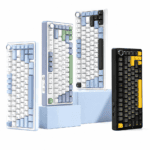
맞춤형 키보드를 제작하는 것은 단순히 색상을 고르는 것 이상의 의미를 지닙니다. 100% 당신만의 독특한 걸작을 탄생시키는 여정입니다. 저희의 맞춤형 빌더를 이용하면 마그네틱 스위치부터 언어, 타이핑 레이아웃, 키캡 디자인까지 모든 것을 원하는 대로 설정할 수 있습니다.
제품 페이지의 맞춤 설정 옵션을 어떻게 사용하는지 궁금하시다면, 이 단계별 가이드를 통해 꿈에 그리던 키보드를 만드는 방법을 정확히 알려드리겠습니다.
베이스 및 하드웨어를 선택하세요
스타일을 구상하기 전에, 먼저 기본부터 다져봅시다.
- PCB 에디션: 저희 중에서 선택하세요 표준판 (일상생활에 사용하기에 좋습니다) 또는 프로 에디션 (업그레이드된 펌웨어, 초저지연, Snap Tap과 같은 고급 기능).
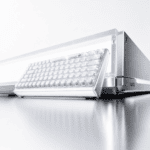
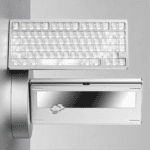
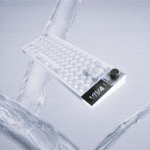
- 케이스 소재 및 색상: 묵직하고 강렬한 사운드를 원하시면 고급 CNC 알루미늄을, 생생한 RGB 조명을 원하시면 폴리카보네이트/아크릴 소재를 선택하세요.
- 자기 스위치: 원하는 키감에 따라 핫스왑 가능한 마그네틱 스위치를 선택하세요(예: 빠른 게임에는 가벼운 키감, 타이핑에는 무거운 키감).
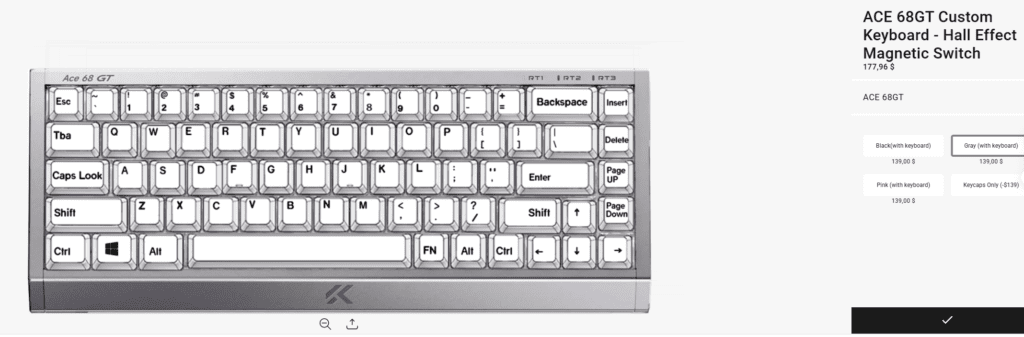
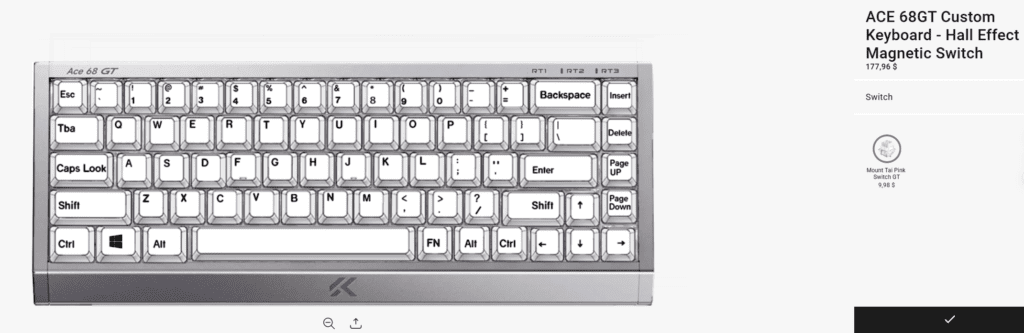
키캡 레이아웃을 선택하세요
올바른 키 배열을 선택하는 것은 사용자의 손 감각과 지역 표준에 맞는 키캡을 사용하는 데 매우 중요합니다. 저희 제품 페이지에서 표준 키보드 레이아웃을 기반으로 원하는 문자 배열을 직접 설정할 수 있습니다.
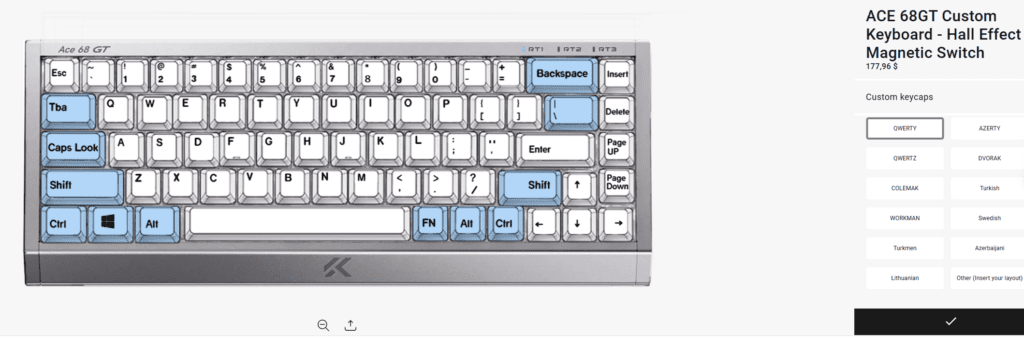
2. 타이핑 레이아웃(영숫자 배열): 표준 ANSI 키보드에서도 사용자의 정확한 요구에 맞는 다양한 타이핑 레이아웃을 지원합니다. 드롭다운 메뉴에서 다음을 선택할 수 있습니다.
- 표준형 및 인체공학적 레이아웃: 쿼티, 드보락, 콜맥, 워크맨.
- 지역별 배치도: 아제르티, 쿼츠, 스웨덴어, 터키어, 아제르바이잔어, 투르크멘어, 리투아니아어.
- 기타 (레이아웃을 삽입하세요): 원하는 레이아웃이 목록에 없으신가요? 걱정하지 마세요! "기타"를 선택하시면 텍스트 상자가 나타납니다. 상자에 원하는 레이아웃을 입력해 주시면 맞춤 제작해 드립니다!
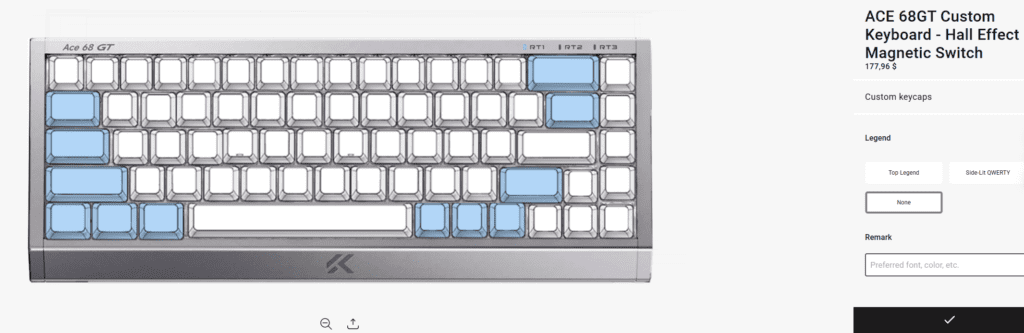
키캡 각인(텍스트 및 언어)을 사용자 지정하세요.
여기에서 키보드를 시각적으로 원하는 대로 설정할 수 있습니다. 각 텍스트 옵션의 의미는 다음과 같습니다.
- 전설: 키캡 중앙에는 주요 언어 또는 대표 문자가 인쇄되어 있습니다. 텍스트 없이 심플한 디자인을 원하시면 "빈칸"을 선택하실 수도 있습니다.
- 레전드 컬러: 글자 색상을 선택하세요. 가독성을 높이려면 키캡 배경과 대비가 잘 되는 색상을 선택하는 것이 좋습니다(예: 검정색 키캡에 흰색 글자 또는 흰색 키캡에 검정색 글자).
- 하위 범례: 이는 메인 각인 옆에 인쇄되는 보조 언어입니다(일반적으로 키캡 모서리). 일본어(히라가나), 한국어, 러시아어, 아랍어, 히브리어 등 인기 있는 옵션을 제공합니다. 이중 언어 사용자나 이중 언어 키캡의 미적 감각을 선호하는 사용자에게 적합합니다.
- 기타 (하위 범례 삽입): 레이아웃 옵션과 마찬가지로, 원하는 보조 언어를 찾을 수 없는 경우 보조 범례 드롭다운 메뉴에서 "기타"를 선택하세요. 텍스트 상자에 원하는 언어 또는 문자를 입력하시면 인쇄해 드립니다.
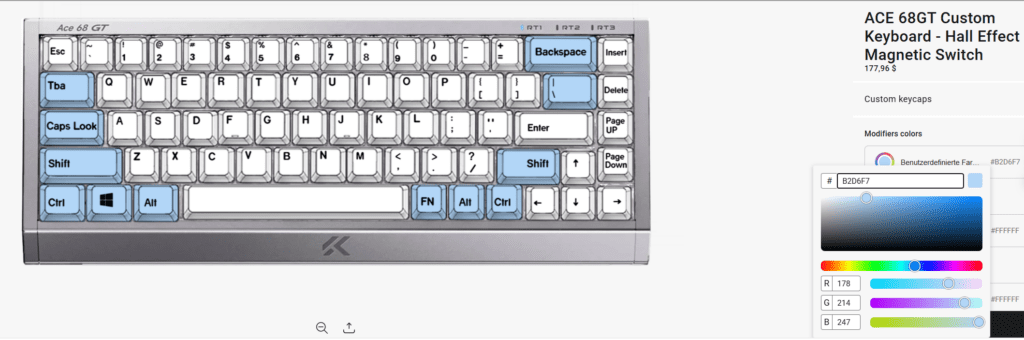
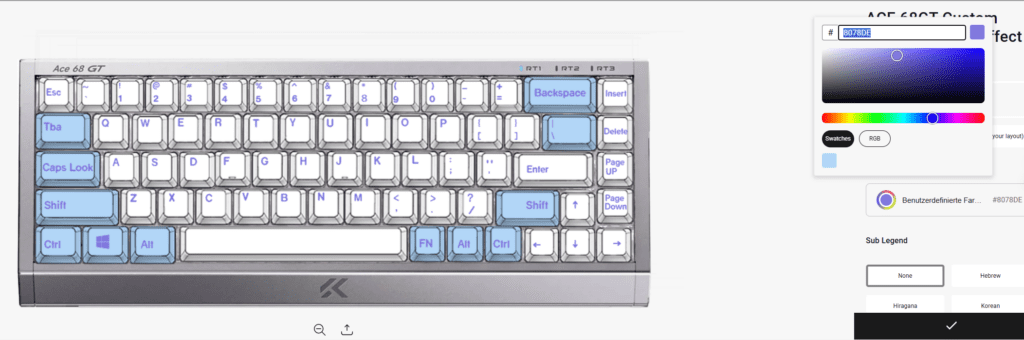
사용자 지정 이미지 및 로고 업로드 방법
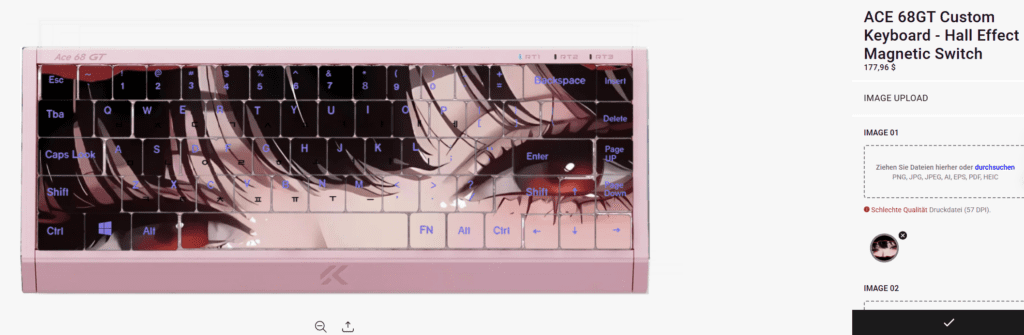
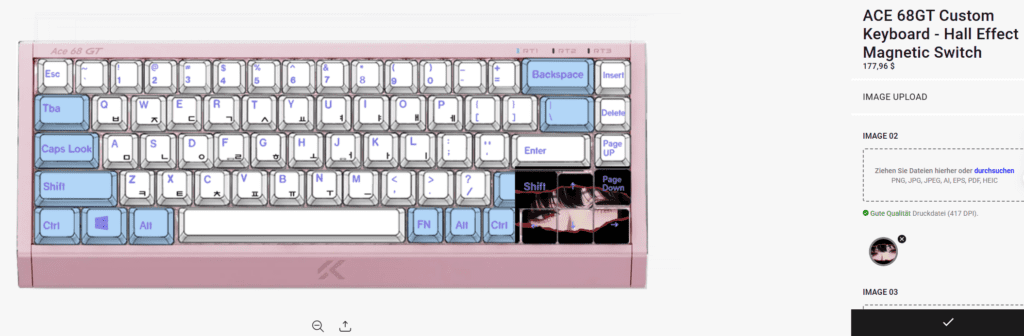
키보드에 나만의 로고, 애니메이션 캐릭터 또는 맞춤 그림을 추가하고 싶으신가요? 저희 서비스를 이용해 보세요. 이미지 업로드 특정 키(예: 스페이스바 또는 Esc 키) 또는 키보드 전체에 사용자 지정 그래픽을 인쇄할 수 있는 기능입니다!
이미지 업로드 기능 사용 방법:
- 파일을 준비하세요: 최상의 인쇄 품질을 위해 고해상도 이미지를 사용하세요. PNG 또는 JPG 형식을 권장합니다. 이미지에 투명 배경이 있는 경우(예: 로고 단독 이미지) PNG 파일을 사용해 주세요.
- "이미지 업로드"를 클릭하세요. 제품 페이지에서 이미지 업로드 버튼을 찾아 컴퓨터나 휴대폰에서 파일을 선택하세요.
- 외출 지침 (선택 사항이지만 권장): 이미지를 인쇄할 특정 위치(예: "이스케이프 키에 로고를 인쇄해 주세요" 또는 "스페이스바 중앙에 이미지를 인쇄해 주세요")가 있는 경우 주문 비고란이나 맞춤 설정 텍스트 상자에 메모를 남겨주세요.
장바구니에 담고 소프트웨어 기능을 잠금 해제하세요
디자인을 완성하셨다면 키보드를 장바구니에 담으세요!
주문 제작 키보드가 도착한 후에도 개인 설정은 계속됩니다. 저희 소프트웨어를 다운로드하여 홀 효과 PCB의 모든 기능을 활용해 보세요.
- 맞춤 설정 작동 지점 (0.1mm ~ 4.0mm).
- 할 수 있게 하다 빠른 트리거 FPS 게임에서 키를 즉시 재설정하기 위해서입니다.
- 활성화 스냅 탭 완벽한 게임 내 움직임을 위해.
- 사용자 지정 설정을 하세요 RGB 조명 새로운 키캡 디자인에 맞춰보세요!
 English
  German
  Portuguese
  Spanish
  Italian
  Finnish
  French
  Japanese
  Korean
  Swedish